QIO-WP-BT
The Q-SYS QIO-WP-BT is a network Bluetooth® audio endpoint native to the Q-SYS Ecosystem, providing wireless audio streaming and bidirectional call bridging, and Auracast™ broadcast audio for unified communications and collaboration spaces. Designed in a compact single-gang wall plate form factor (available in North American and European backbox variants), it enables simple integration of personal mobile devices and audio sources into Q-SYS without requiring third-party bridging or complex audio routing. The QIO-WP-BT is powered via Power over Ethernet (PoE) over a single Gigabit Ethernet connection and includes a secondary RJ45 expansion port reserved for future use.
Note: This topic provides an overview of the QIO-WP-BT. For specifications and installation documentation, see the QIO Series product page on the Q-SYS website.
 Features
-
Native Bluetooth audio input/output and control for Q-SYS
-
Compact single-gang form factor (available in North American and European backbox versions)
-
Bluetooth 5.4 support featuring A2DP and AVRCP profiles for media streaming and Hands-Free Profile (HFP) for bidirectional call bridging
-
Auracast™ broadcast audio transmitter support for streaming audio to an unlimited number of nearby Auracast-enabled receivers and hearing assistance devices
-
Support for advanced audio codecs including SBC, AAC, aptX, and aptX HD
-
Front-panel momentary Bluetooth pairing button
-
NFC-assisted Bluetooth pairing for tap-to-pair mobile connectivity
-
Software-configurable RGB Power/Status and Bluetooth status LED indicators
-
IEEE 802.3af Power over Ethernet (PoE) operation over Gigabit LAN
-
RJ45 expansion port reserved for future use
-
Interchangeable faceplates (supplied in RAL 9003 white with an included RAL 9011 black faceplate)
-
Comprehensive device management, pairing controls, and monitoring in Q-SYS Designer Software and Q-SYS Reflect
Design Components
These Inventory components are available for the QIO-WP-BT:
Connections and Callouts
Front Panel
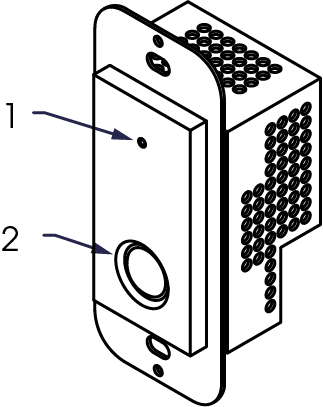
-
Product Status LED - Indicates general device status, including power state, active ID mode (blinking pattern), and system faults. Product Status LED can also be configured for custom status indication.
-
Bluetooth Pairing Button – Momentary push button used to initiate Bluetooth pairing mode or disconnect active connections.
-
Press: Enters Bluetooth pairing mode. LED flashes blue.
-
Press and hold (5 seconds): Disconnects from a connected Bluetooth device. LED turns off.
-
Solid Blue: Indicates an active Bluetooth connection.
-
Off: Bluetooth interface is idle or disconnected or LED has been disabled by user.
-
Top Panel
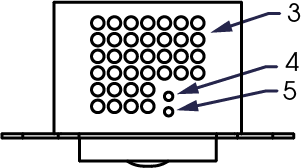
-
Vent Area - General Vent to keep components cool (also found on sides).
-
Device Reset - Use a paperclip or similar tool to restore default network settings and recover factory default settings. Before attempting a reset, refer to the Device Reset section for details.
-
ID - Toggles ID mode in Q-SYS Configurator/Designer. Use a paper clip, or similar tool, to press and initiate ID mode. When ID mode is activated, the module will blink its LED (1 - Product Status LED) on the front panel in a characteristic pattern. Must be uninstalled from the wall to reach this button. ID mode can also be activated via Q-SYS Designer Software.
Bottom Panel
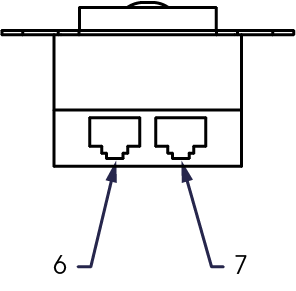
-
Expansion Port - Reserved for future features.
-
LAN Port - RJ-45 connector (10/100/1000 Mbps) with 802.3af/at PoE support. Connects to the Q-LAN network for audio streaming, device control, and power.
Specifications
Product specifications and dimension drawings for the QIO-WP-BT can be found on the QIO Series product page at qsys.com.
Device Reset
The pinhole Reset Button is located on the rear of the QIO Audio Wall Plate. You can perform either a Short Reset or a Long Reset:
Short Reset: Restores the device's IP network settings back to default Auto mode (DHCP) and deletes all Static Routes in the event that unintended network settings were applied or the device becomes unreachable. The configured hostname is retained.
Long Reset: Restores the device to factory condition.
CAUTION: A Long Reset clears all network settings (including custom hostname), disables 802.1x network authentication, deletes user-installed device certificates, deletes all event/system logs, and clears the device administrator password.
Performing a Short Reset
-
Using a paperclip or similar tool, press and hold the Reset Button on the rear panel until the Power LED on the front begins flashing blue slowly (approximately 10 seconds).
-
Release the button before 20 seconds elapse.
-
The device completes the Short Reset and reboots.
Note: To cancel a Short Reset, release the Reset Button before 10 seconds elapse.
Performing a Long Reset
-
Using a paperclip or similar tool, press and hold the Reset Button on the rear panel until the Power LED on the front begins flashing blue rapidly (approximately 20 seconds).
-
Release the button once the rapid flashing begins.
-
Within 30 seconds, press the Reset Button again to confirm the reset.
-
The device completes the full factory reset and reboots.
Note: To cancel a Long Reset, do not press the Reset Button again during the 30-second confirmation window.